
Earplugs gives you a quick way to make The Isle quieter without adjusting every other application. Turn it on in TheIsleMinimap to limit the game's Windows mixer volume to 20%, then turn it off to restore the previous level. You can also assign your own keyboard shortcut or add an Earplugs button to Quick Access.
This guide covers the feature introduced in TheIsleMinimap 1.7.1. Its three AI-generated illustrations are conceptual artwork, not screenshots of the app or game. The keyboard and volume graphics explain the workflow; the actual controls are described below.
Where to find Earplugs in App Settings
Open TheIsleMinimap Settings, choose App Settings, and scroll to Gaming & Startup. The Earplugs card sits immediately below Interaction while gaming. Its Enable earplugs switch controls the current state, while the status line reports the result of the most recent volume change.
Start The Isle and allow it to play audio before trying the switch. Earplugs needs a game audio session to adjust. If none is available, the app asks you to start the game and try again; it does not quietly lower your entire PC output instead.
For the first test, use a calm moment in the game. Note the game's Windows mixer level, enable Earplugs once, and switch it off again. This gives you a clear example of the reduction and restoration before you rely on a shortcut during play. If your installed app does not show the card, open Software Update and check for an available update.
What the 20% limit actually changes
Earplugs changes The Isle's application volume in the Windows mixer. It leaves your audio device's master volume and other applications alone. Discord and music playing in separate applications keep their own mixer levels. It also does not rewrite the game's individual music, effects or voice sliders.
A 20% mixer value is an absolute target on that mixer scale, not a promise about perceived loudness and not a reduction of twenty percentage points. A game session at 73% is limited to 20%. A quieter session at 8% stays at 8%; enabling Earplugs does not make it louder.
| Before enabling | Earplugs on | After switching off |
|---|---|---|
| Game mixer at 73% | Limited to 20% | Returns to 73% if no manual change intervened |
| Game mixer at 8% | Remains at 8% | Remains at the quieter level |
| A separate voice-chat app | Its own volume is unchanged | Its own volume remains unchanged |
You can confirm the distinction in Windows Volume Mixer rather than judging it only by a loud sound effect. Microsoft documents application audio sessions separately from output-device controls. The useful product point is simple: Earplugs targets game audio, while your normal Windows and in-game settings still influence what you hear.
How to assign a custom Earplugs shortcut
In the same card, select Assign shortcut, then press the key or combination you want. For example, press Ctrl and P together. The shortcut field displays the saved combination when assignment finishes. Press Escape or choose Cancel if you want to abandon the assignment.
You can use an ordinary key or a combination with Ctrl, Alt or Shift. Tab and Windows-key combinations are unavailable. Choose a binding that does not conflict with the controls you already use in The Isle, your overlay tools or other software. Ctrl + P is an example, not a default assigned automatically to everyone.
The shortcut does not consume the game's input. If the same combination performs an action in The Isle, that action may still occur when you toggle Earplugs. Check your current game bindings and practise the chosen combination before using it near another animal. To remove the saved assignment, select Clear. You can continue using the settings switch without a keyboard shortcut.

The shortcut works while The Isle has focus
Bring The Isle to the foreground, press the assigned shortcut once, and release it. Press it again to switch back. Holding the key down does not repeatedly toggle Earplugs. The keyboard shortcut is limited to the foreground game rather than acting while you type in another application.
This focus requirement is useful when you switch between playing and messaging friends. If you are entering text in Discord or using the minimap settings, the game shortcut is not the intended control. Use the Earplugs switch or its Quick Access button when you want to operate the feature from the app itself.
Earplugs shortcut assignment does not require enabling Tab-only coordinate reading. Those are separate controls with separate purposes. The existing Tab-reading permission flow still applies to that reading mode; setting an Earplugs combination does not turn it on.
Add Earplugs to the Quick Access sidebar
Open the sidebar's + selector and choose Earplugs from the available actions. The button then uses the same volume state as the App Settings switch. You do not have to configure a second volume target or create a separate keyboard assignment for it.
Quick Access still holds up to eight buttons. If it is full, remove a less-used action before adding Earplugs. Right-click an existing sidebar action to remove it; holding and dragging lets you arrange the remaining buttons. See the Quick Access tutorial for the standard sidebar controls.
Choose a place where you can recognise the earplug icon without searching through the whole sidebar. The keyboard shortcut is useful while the game remains active; the button is useful when you are already interacting with the companion. Both provide access to one feature rather than independent audio presets.
Turning Earplugs off and restoring the previous level
Switching Earplugs off restores the game's remembered mixer level. Normal minimap shutdown also attempts restoration. Your keyboard assignment is retained for later launches, but Earplugs itself starts off when the app opens again. You are not automatically placed into a reduced-volume state each session.
If you deliberately change the game's Windows mixer level while Earplugs is active, the app preserves that adjustment as the updated restoration baseline. While active, it continues to enforce the 20% limit without raising quieter values. A manual adjustment immediately before switching off is also respected rather than overwritten blindly.
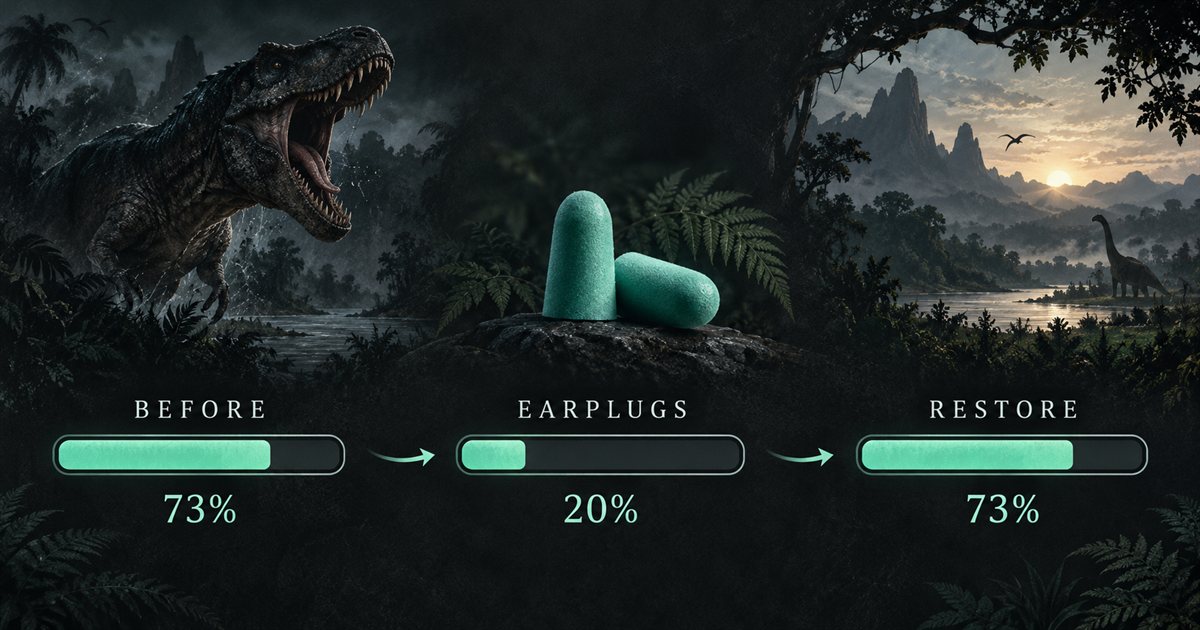
Closing normally is different from force-terminating the process or crashing. An unavailable audio device can also prevent a restoration attempt. If the app reports that a level could not be restored, reconnect the output and try switching Earplugs off again. Check Windows Volume Mixer when the result is uncertain.
Use the quieter state deliberately
Earplugs reduces the game's audio session as a whole. Calls, footsteps and other sounds in that session become quieter along with louder effects. It is not an enemy-sound filter and does not selectively preserve warning sounds. Decide when the quieter state suits what you are doing, then switch back when you want the normal game level.
Before a river approach or an uncertain encounter, take a moment to consider your current volume state. You can combine the feature with the observation habits in our calls and sounds guide, but quieter audio should not be mistaken for a quieter area.
If the switch or shortcut does not behave as expected
First read the card's status message. Confirm that The Isle is running and producing audio, then try the settings switch. If the button works but the key does not, bring the game to the foreground, check the displayed assignment and release all keys before another attempt.
If there is a binding conflict, clear the assignment and choose another combination. If your output changed, inspect the game's session in Windows Volume Mixer. Avoid changing the device master level as a substitute for testing the app's game-only switch, because that would change what you hear from every application.
For an unresolved app issue, open an Account Portal support ticket. Include your app version, the displayed status and whether the settings switch or only the shortcut failed. Do not post your license key or private squad code in a public report.
Earplugs questions
Does Earplugs mute The Isle?
No. It limits the game mixer to 20% without increasing an already quieter setting.
Does Ctrl + P work immediately after installing?
No shortcut is assigned automatically. Choose your own combination in the Earplugs card.
Will it lower Discord too?
Separate application audio sessions are not adjusted. Voice audio produced by The Isle itself belongs to the game session.
Where can I see the rest of the app's tools?
The features page lists navigation, reading, overlay, squad, update and support tools.