
Open Settings > Software Update, choose Check for updates and follow the update window when a newer version is available. The normal update installs the new app and restarts it while preserving your saved local preferences. Afterward, check the installed version and supply a fresh position before returning to your route.
The cover is an AI-generated conceptual illustration. The screenshot below shows the actual Software Update page.
Check your installed version first
In the app, open Settings, then Software Update. The Installed Version panel identifies the copy you are running. Choose Check for updates and wait for its result. If it says you already have the latest version, keep using the current installation and check again when a new release is announced.
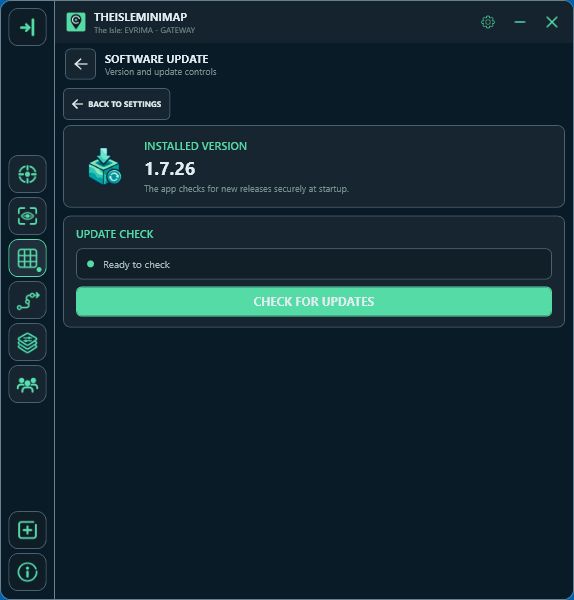
The app also checks for releases at startup. An update window opened during startup can have different deferral wording from one opened inside Settings. Read that window before choosing when to install. In the Settings flow, choosing to update later returns you to the app so you can finish what you were doing.
Download the update and let the app restart
- Choose Update now when the window offers the newer version.
- Allow the download progress to finish.
- When it shows installation and restart, let that handoff complete.
- After the app returns, open Settings > Software Update and check Installed Version again.
Pick a moment when you can pause navigation. The minimap closes as part of installing the prepared update, then starts again. After it returns, refresh your coordinates from the game and check the map before continuing a journey. Friends should also allow for that interruption when arranging a meetup.
Keep the version you expected in mind when checking the result. If the old number still appears, confirm you opened the installed app’s usual shortcut and read any update message that remained on screen. Record those details if the same problem happens again.
Confirm the settings you use while playing
The usual update keeps the app’s saved preferences and sharing settings on the same PC. Look at the settings that affect the first minute of play, such as app size, opacity, click-through behavior and your Quick Access buttons. Check your selected map layers and position-reading mode before leaving a familiar area.
| After the restart | What to check |
|---|---|
| Map and app appearance | Your preferred size, opacity, filters and sidebar actions. |
| Position updates | A fresh Asset Location reading and the current update status. |
| Solo personal pins | Your saved places with Solo access active. |
| Private squad | The connection status and a fresh shared position when using Squad access. |
| Earplugs shortcut | The binding you expect before using it in the game. |
If you changed your display, Windows scaling or game layout at the same time, check that the reading area still covers Asset Location. Reopen setup from Position Updates when necessary and confirm the preview. The screen-reading guide provides more detail.
Changing computers has a different setup process. If that is your goal, follow the new PC guide for moving the device activation and recreating local preferences.
Read the update notes
After an eligible update, the What’s new popup lists improvements and fixes. You can dismiss it once you have read the notes. The website changelog keeps published release notes available when you want to look back later.
Use the notes to decide what to check in your next session. A change to location setup might call for inspecting the reading preview, while a map-control change might be something to try on a short route. Your existing settings provide the starting point for that check.
If the download fails or seems stuck
A stalled download can take time to report a problem, especially on an unstable connection. Look at the progress and any displayed message before starting another copy of the app. Once a failure is reported, the update window offers Try again. Check your connection and use that action to begin another attempt.
If you close the update window during its download, you can return to Software Update and check again later. Once the window has switched to installation and restart, allow that stage to finish before deciding whether it failed. The public service status page can help you check whether Software updates is currently reporting a service problem.
If the same update keeps failing
Note the installed version, the version offered, the stage where it stopped and the complete error text. Include those details in an Account Portal support ticket. A screenshot of the progress or error is useful when it shows the step you are describing.
If support recommends running setup again, use the current Download page for its instructions. Follow any local-data choice carefully, because removing local data also removes saved preferences. Keep your license key private when sharing screenshots or diagnostics.