
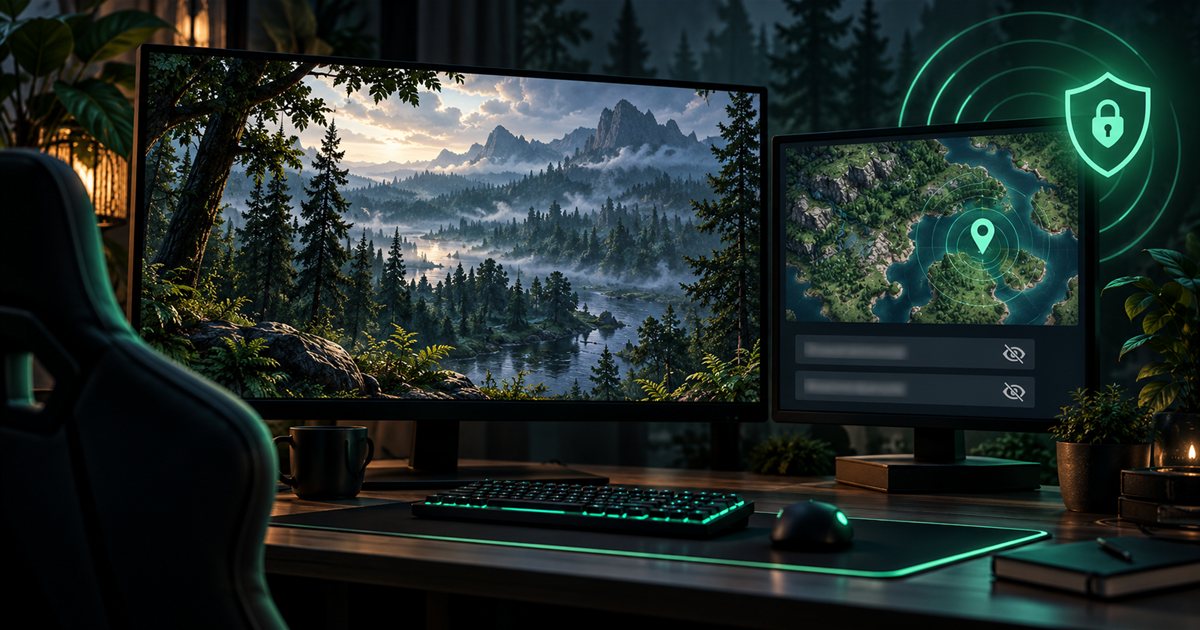
Streaming Privacy blurs your displayed coordinates and squad-code fields in TheIsleMinimap while leaving the minimap usable. Enable it before recording, verify the visible state, then review what your capture actually includes. The map, the game and the rest of your desktop can still reveal information outside those blurred fields.
This guide describes TheIsleMinimap 1.7.1. AI-generated illustrations show the privacy concept rather than exact app screens, real squad codes or current Gateway terrain. The feature is a visual blur in the companion, not a separate protected broadcast feed.
Enable Streaming Privacy before sharing
- Open TheIsleMinimap settings and choose Streaming Settings.
- Find the Streamer Privacy card and enable Hide sensitive details.
- Check the status message. When enabled, it says that privacy blur is active for coordinates and squad codes.
- Return to Current Position and inspect the coordinate display. If you use squads, also review the join-code and active-code fields.
- Check your recording or broadcast preview before showing the companion to viewers.
The setting is saved, but a saved preference is not a substitute for a quick visual check at the start of a session. Confirm the switch and displayed fields after restarting the app, changing a capture scene or preparing a new recording layout.
You can also add Streaming privacy to the Quick Access sidebar. That shortcut toggles the same setting, making it useful when moving between private setup and a public recording. Because it is a toggle, clicking it again can turn privacy off. Always check the resulting state instead of assuming every click enables protection. The Quick Access guide explains how to add and arrange it.
Understand which fields are blurred
Streaming Privacy applies a visual blur to the current Lat and Long shown in Current Position, the squad join-code field and the active squad-code display. Those are the specific fields covered by the control. It does not broadly search every window or every piece of text for sensitive information.
| Area | Effect of Hide sensitive details | What to verify |
|---|---|---|
| Current Position coordinates | The displayed coordinate text is blurred. | Confirm that your recording shows the blurred state. |
| Squad join-code field | The visible entry field is blurred. | Check the destination if you copy or paste the code elsewhere. |
| Active squad-code display | The visible code text is blurred. | Check that other windows do not show another copy. |
| Map and map markers | They remain visible. | Decide whether showing your map location is appropriate. |
| The Isle's own Asset Location panel | It is outside the companion's privacy blur. | Review the game capture when opening Tab. |
The app describes the effect as an 85% privacy blur. That wording describes the visual treatment; it is not an 85% security score, encryption level or guarantee that recorded text can never be inferred. If a particular value must not appear in a recording, keep its field out of the capture as well as using the blur.
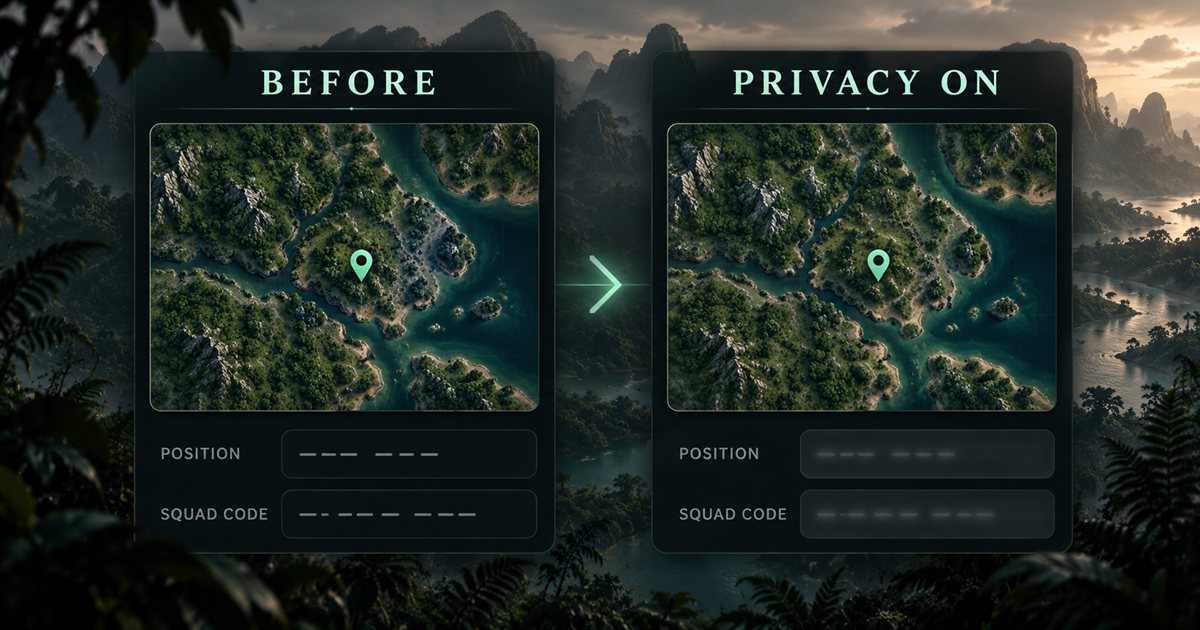
The blur is visible in the local app too. It does not create one clear view for you and a separate obscured view for viewers. If you briefly disable it to inspect a value, make that change outside the public capture and verify that privacy is enabled again before returning.
Check what remains visible
Your map can reveal approximate location even when exact numbers are blurred. A recognisable coastline, road junction, landmark, marker or movement trail can help a viewer infer where you are. Streaming Privacy leaves those map features visible so the companion can continue to function as a navigation tool.
That makes your capture choice important. If revealing your map position would spoil a session, hide the companion from the recording or choose a capture layout that excludes it. Reducing opacity, hiding the sidebar or enabling click-through is not equivalent to removing location information from a video.
The game's own interface is separate. Opening Tab can expose Asset Location inside The Isle even while the companion's coordinate field is blurred. Automatic reading depends on the game displaying that information, so plan for the moment you open the panel rather than looking only at the companion after the reading finishes. See the screen-reading guide for how the two reading modes work.
Account pages, license information, chat windows, notifications, browser tabs and files elsewhere on the desktop are also outside this setting. Squad member names, shared pins and other visible map details are not covered by a promise to hide the coordinate and code fields. Review the whole captured scene according to what you intend viewers to see.
Handle copying and squad sharing carefully
Copy actions keep working when privacy is enabled. A blurred squad-code field can still be copied, and the copied value is not transformed into blurred text on the clipboard. If you paste it into chat, a document or a browser field, that destination may display the original value clearly.
Use a private destination for squad invitations and check the recipient before pasting. After copying a code, avoid casually pasting into a public chat or into a text field that is already on stream. The setting does not clear the Windows clipboard, control other applications or redact the content you send.
Position tracking and squad sharing also continue. Enabling the blur does not disconnect the squad, stop your position updates or revoke an invitation. If you need to change sharing or membership, use the appropriate squad controls. The private squads page explains that separate feature.
This separation is useful when you want squadmates to receive your position while your recording obscures the numeric display. It also means that privacy state alone tells you nothing about whether you are connected to a squad. Check both the privacy status and the sharing status when your recording plan depends on them.
Review a short test recording
Make a short local recording using the same sources, scene and window arrangement you intend to use publicly. Watch the resulting file rather than relying only on a small live preview. Text that appears unreadable in a reduced preview can be easier to see in a full-size recording.
- Show the normal companion view and check Current Position.
- Open the squad settings you expect to use and inspect any code fields.
- Open the in-game Tab panel as you normally would for a position update.
- Switch between the game, companion and desktop views that your session will include.
- Review the recording for exact values, recognisable map location, account details and unexpected notifications.
- Adjust the captured area or scene, then repeat the relevant part of the check.
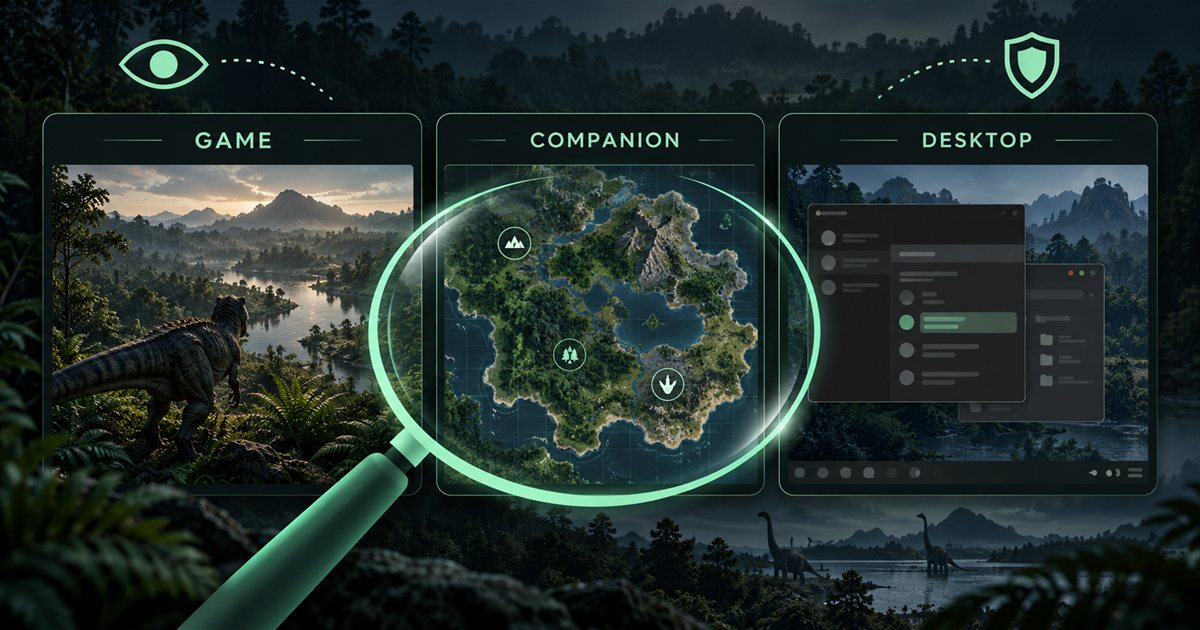
Test with harmless placeholder information wherever possible. Do not create a public broadcast just to find out whether a private code is visible. A local recording lets you correct the layout before that information reaches viewers.
If you use several scenes, check each scene that can include the companion or desktop. One correctly cropped view does not establish that a second source, wider desktop scene or later window move is equally appropriate. Recheck after changing app size, capture framing or display arrangement.
Avoid common privacy mistakes
- The fields look clear: check Hide sensitive details and the active status message; a second toggle may have disabled it.
- The map still shows your marker: that is expected. Exclude the map from the capture if its location must stay private.
- A pasted code is readable: clipboard content is unchanged. Review the destination and remove it from the capture.
- Coordinates appear in the game: the app cannot blur The Isle's own Tab panel. Adjust your recording workflow.
- You need a clear private view: the companion does not provide separate local and broadcast privacy states. Make any temporary change outside the public capture.
For a persistent issue with the app's blurred fields, open an Account Portal support ticket. Include your app version, whether the settings switch or Quick Access action was used, and which field stayed visible. Redact the value yourself before attaching an image; do not submit a real squad code as the example.
Your pre-stream checklist
Enable Hide sensitive details, verify the status and inspect the actual output. Decide whether showing the map location is acceptable, keep code copying private and account for The Isle's own coordinate panel. With those checks completed, Streaming Privacy can do its intended job: obscure selected companion fields while you continue using the map.
For the wider feature set, visit all TheIsleMinimap features. For a complete first-session walkthrough, use the tutorial alongside this focused privacy guide.