
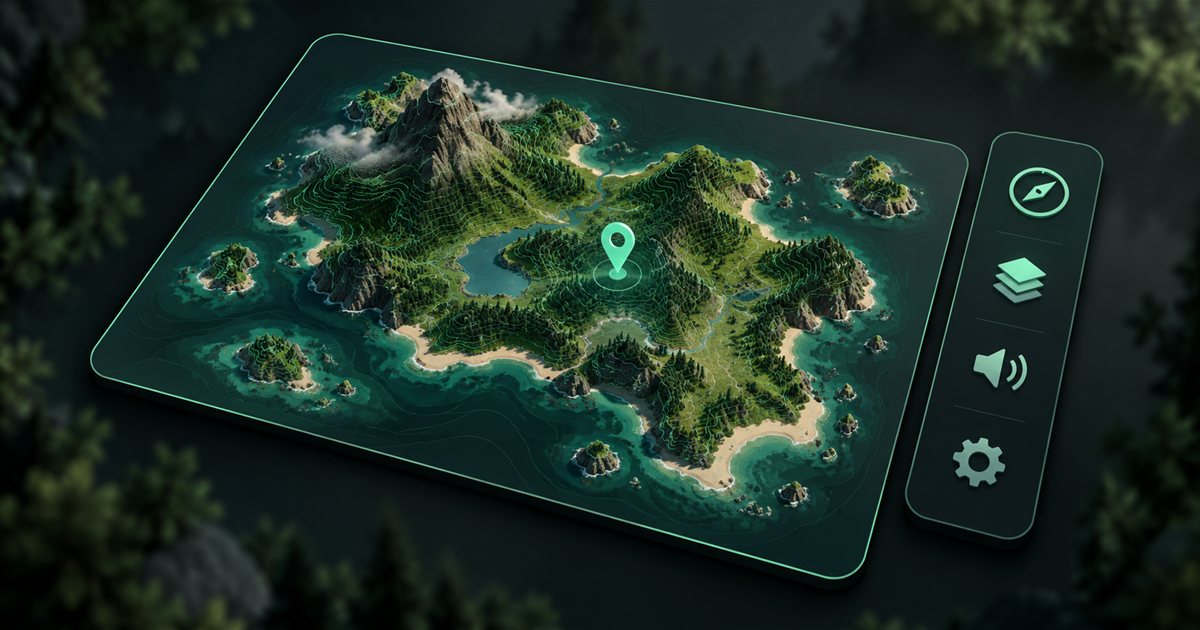
Quick Access puts your most useful TheIsleMinimap controls beside the map. You can choose up to eight buttons from 36 available actions, then arrange them in the order that suits your sessions. A good sidebar starts with a few familiar controls and grows only when you find yourself repeatedly opening the same settings page.
This guide uses the action names and behaviour in TheIsleMinimap 1.7.1. AI-generated illustrations show the ideas behind selection and organisation; they are not exact app screenshots or real Gateway map data. The layouts below are suggestions to assemble manually, not built-in presets.
Understand the sidebar
Quick Access is a set of clickable app controls. Adding a button makes the action available in the sidebar; it does not automatically activate the feature. After adding it, click the shortcut to use it and check the app's resulting state or status message.
Some buttons toggle a setting, such as Map grid or Streaming privacy. Others perform a one-time action, such as Reset map view, or open a settings page. This distinction matters: repeatedly clicking a toggle can turn a feature back off, while opening Map Settings simply takes you to its controls.
The sidebar can hold fewer than eight actions. Leaving space is useful if you are still learning the app, because the buttons you keep are easier to recognise. You can also open the built-in Quick Access information guide from the sidebar when you need a reminder about the gestures.
Add, remove and reorder buttons
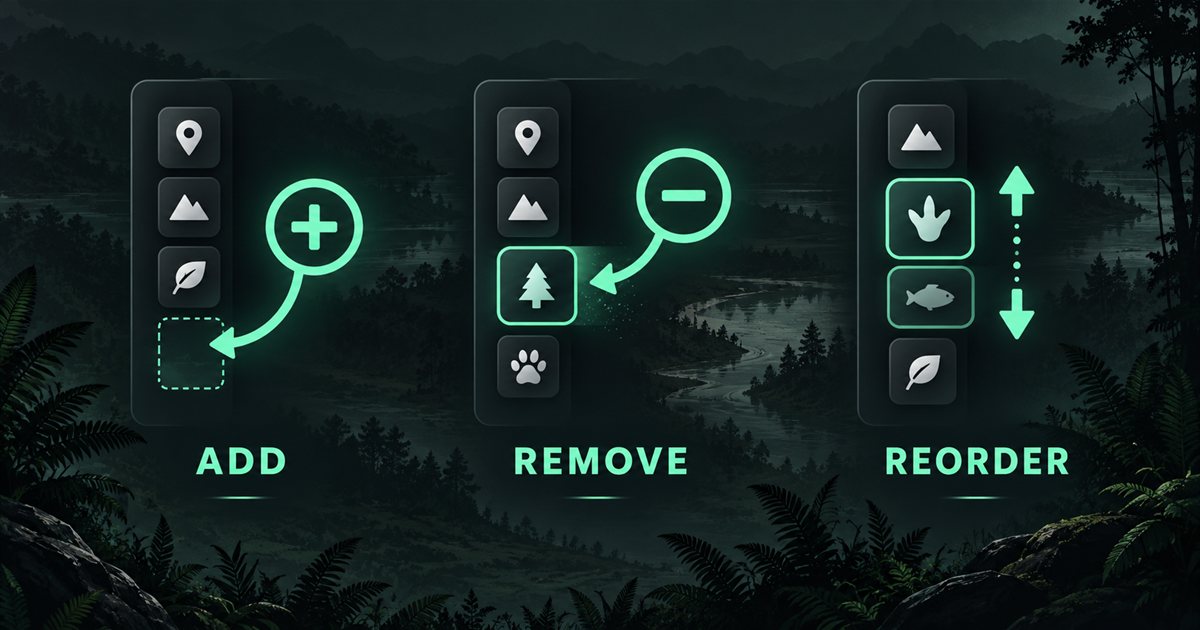
- Select + at the bottom of the sidebar to open the action selector.
- Choose an available action to add it. You can keep up to eight actions in the sidebar.
- To remove a shortcut, right-click its sidebar button. Alternatively, open + and select the action's ADDED card.
- To reorder, hold a sidebar button with the left mouse button until it lifts. Drag up or down to the highlighted insertion line, then release.
- If you change your mind while dragging, press Escape to cancel. Your completed order is saved.
The + selector remains available when all eight places are filled, so you can remove an existing action there before adding a replacement. You do not need to reset the whole app just to exchange one button. Removing a shortcut removes its place in the sidebar; it is not a general command to disable the underlying feature.
To hide the sidebar, use its top hide button. To restore it, use the matching button in the app header. Your selected shortcuts are preserved. If you want a quieter view temporarily, hiding the sidebar is more convenient than deleting every action and rebuilding the list later.
Choose from the available actions
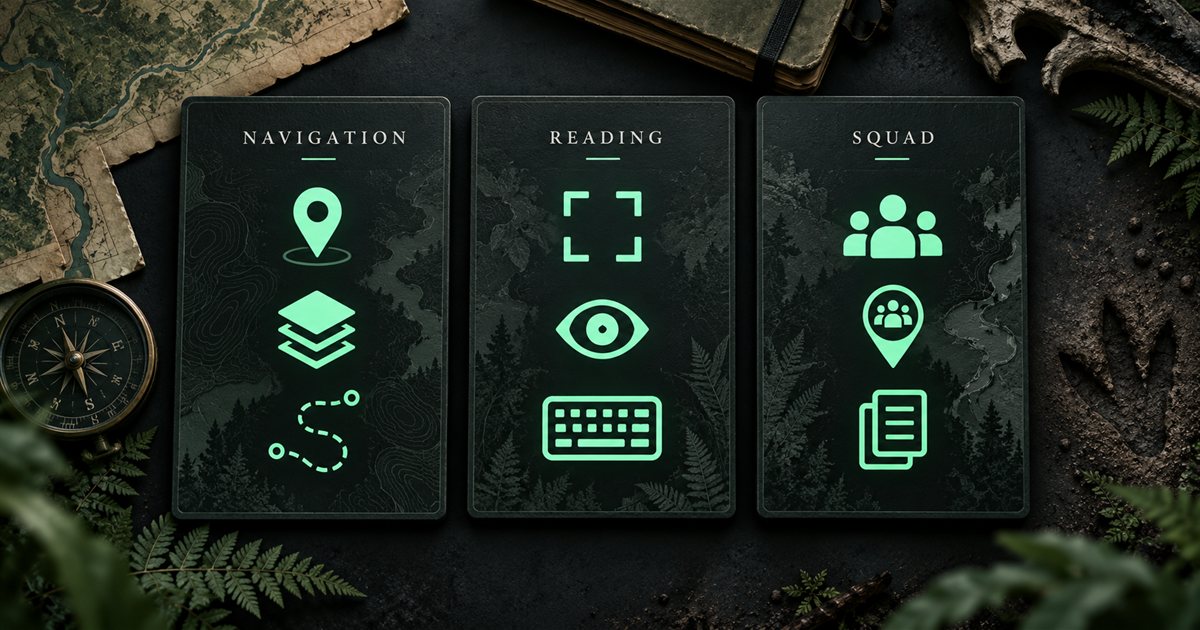
The available actions cover navigation, reading, visual layers, audio, privacy, squad tools and app maintenance. Use the exact labels in the selector to distinguish similar controls. For example, Map Settings opens a page, while Map grid directly changes that map display option.
| Purpose | Available actions | What to consider |
|---|---|---|
| Navigation and history | Follow player; Map grid; Movement trail; Reset movement trail; Reset map view | Keep the controls you use while orienting yourself, rather than every possible navigation action. |
| Position reading | Automatic screen reading; Tab-only reading; Set reading area | Reader consent, a confirmed area and any requested administrator restart still apply. |
| Layer groups | General layers; Animal markers; Plant resources; Earthworks resources; Map Layers Settings | Group switches are convenient for decluttering; the settings page provides detailed filters. |
| Individual general layers | Location names; Landmarks; Drinking water; Sanctuaries; Migration zones; Patrol zones; Air currents; Roads and trails; Mud areas; Salt licks; Caves and entrances | Choose only the reference layers you frequently switch during a session. |
| Privacy, audio and presentation | Streaming privacy; Earplugs; Mouse interaction; Cycle app size; Cycle opacity | These change different aspects of the companion; review their effects before relying on them. |
| Settings, squads and maintenance | Squad Settings; Copy squad code; Service status; Check for updates; Map Settings; App Settings; Diagnostics | Squad actions require a Squad-enabled license. Copying a code puts it on the clipboard. |
The map layers page explains what the reference data represents. Animal markers and resource locations are mapped reference information, not live server entities. Adding an animal button does not reveal a nearby dinosaur or guarantee that an animal is currently at a marked place.
Try three practical layouts
These examples use six actions each, leaving room for two personal choices. Build them by selecting the named actions yourself. There is no claim that the app has a preset selector or automatically swaps layouts when you change activity.
A navigation-focused selection
Try Follow player, Reset map view, Map grid, Location names, Drinking water and Map Layers Settings. This keeps orientation and reference controls together. Follow player helps bring the marker back into view when it leaves the visible viewport; it is not a permanently camera-locked follow mode.
Put the actions you use most near the top, then give the layout a full session before changing it again. If you rarely switch the grid, replace that button with a layer you actually use. A tidy arrangement should reflect your habits rather than a universal ranking.
A reading-and-comfort selection
Try Automatic screen reading, Tab-only reading, Set reading area, Map Settings, Earplugs and Cycle opacity. This can be useful while establishing your preferred capture and display setup. Once the reading area is reliable, replace that setup shortcut if you no longer need it frequently.
Set up the reader through the screen-reading walkthrough first. For audio, the Earplugs guide explains the separate volume toggle and configurable keyboard shortcut. Choosing an Earplugs sidebar button does not itself assign a keyboard binding.
A squad-and-recording selection
Try Squad Settings, Copy squad code, Streaming privacy, Follow player, Reset map view and Earplugs. Check that your license includes Squad features before planning around the first two actions. Review the private squads overview for the sharing workflow.
If you regularly record your screen, consider whether Copy squad code deserves a prominent place. Privacy blur does not change what a copy action places on the clipboard. Paste a code only into the intended private destination, and review the Streaming Privacy guide before broadcasting.
Know what a shortcut changes
A direct shortcut uses the app's existing feature controls and requirements. Automatic reading still needs consent and a confirmed reading area. Tab-only reading can still ask for an administrator restart. Squad shortcuts still respect the license and current squad state. Quick Access is a faster route to an action, not a way around its setup.
General layers have a master switch and individual preferences. Turning the master group off can hide a layer whose individual preference remains selected. An individual layer shortcut accounts for that: enabling it can also enable General layers so the selected layer becomes visible. Check the settings page if the result surprises you.
Cycle app size and Cycle opacity move through the app's available choices. They do not open a free-form editor. Movement trail is a local display aid; Reset movement trail clears that history. Neither control generates a route or shares your trail with the squad.
Solve common sidebar problems
- No room for a new button: remove one of the eight selected actions through right-click or its ADDED card.
- A click moved nothing: check whether the action opens settings, toggles a state or performs a one-time operation; read the status message.
- Dragging activates the action: hold until the button lifts before moving it, then use the insertion line.
- The sidebar disappeared: restore it with the matching header button; your selection is preserved.
- A reading or squad action cannot complete: check the underlying setup, permission or license requirement in its settings page.
For a persistent problem, open an Account Portal support ticket. Include your app version, action label and what happened after clicking it. Keep private squad codes and license details out of screenshots.
Make your final selection
Keep the actions you use repeatedly, order them so related controls sit together, and verify each button once before depending on it during play. Use the sidebar's information guide for gesture reminders and the full tutorial for the rest of the interface. You can adjust the selection later without treating eight buttons as a target you must fill.