
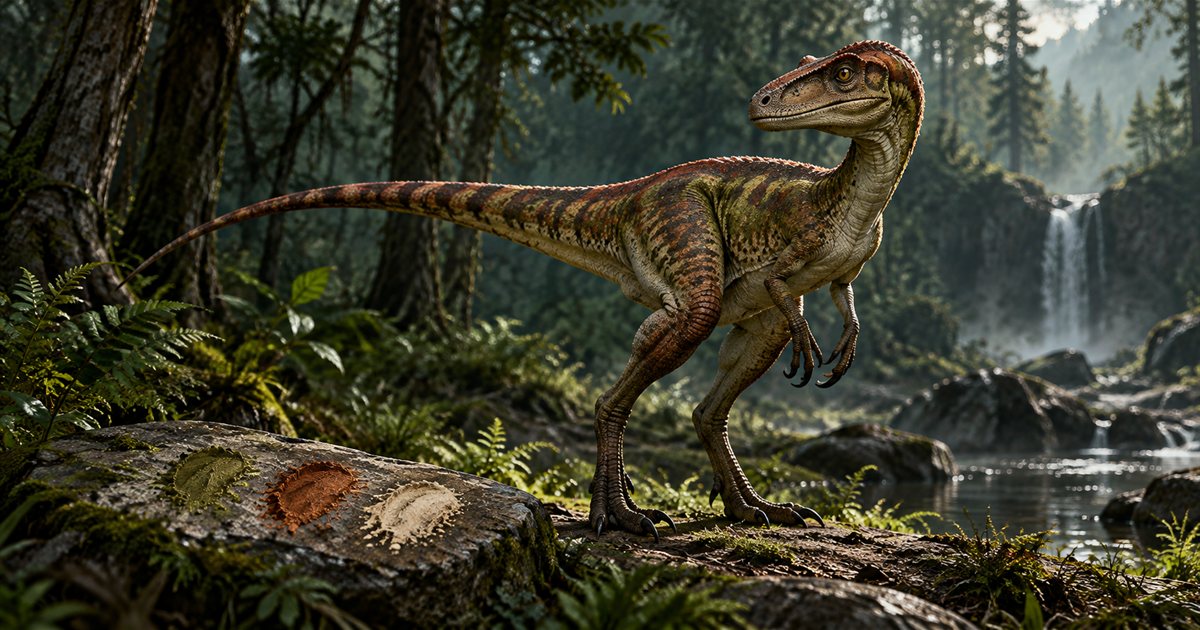
A good The Isle EVRIMA skin can be memorable, easy for friends to recognise and less conspicuous against the places you like to explore. Start with the dinosaur and pattern you enjoy, then compare its colors in ordinary light. A skin that looks dark in the preview can stand out strongly against pale grass or an open skyline.
Check the options available for your current species and game branch. Adjust one part at a time, inspect both sides of the dinosaur, and save a preset if your build provides that option. Treat camouflage as a visual choice: movement, silhouette, sound and the surrounding terrain still matter.
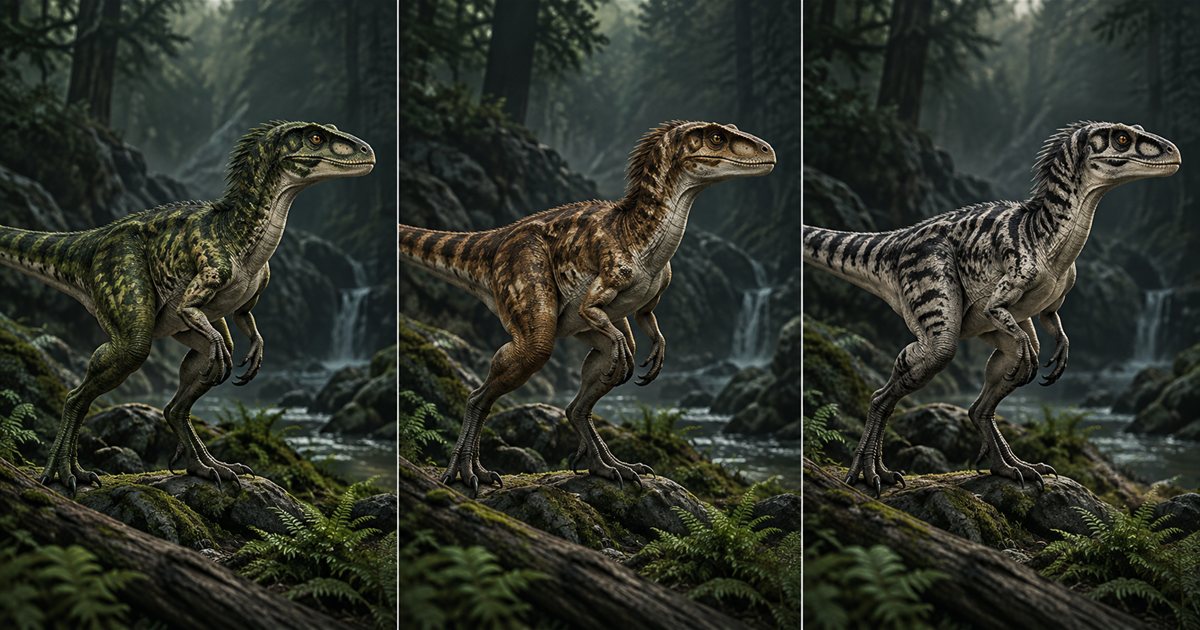
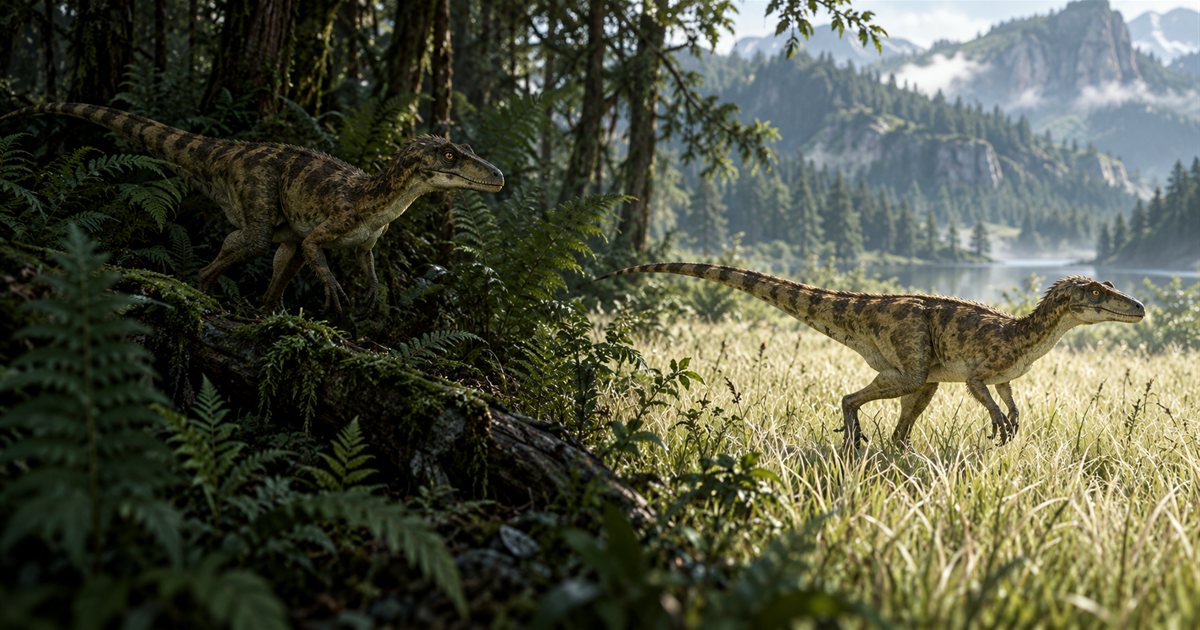
The three AI-generated illustrations in this guide are conceptual artwork, not screenshots of EVRIMA's customizer or examples of exact colors you can reproduce. They demonstrate the comparison process rather than an unlockable skin.
Check the customizer in your installed branch
Open the skin-customization view offered by your character-selection workflow before committing to a new dinosaur. Read the visible options instead of copying a slider layout from an old video. Species, pattern and game branch can change what is available. A test-build demonstration is not a promise that your public build has the same controls.
The developers' official announcements, including DevBlog #73, describe ongoing work on gradients and palettes that suit particular animals and patterns. That explains why another dinosaur's color combinations may not be directly transferable. Use the options actually shown for your chosen animal.
Pick the pattern before fine-tuning individual colors
First decide whether you prefer broad patches, more obvious stripes or a quieter overall appearance among the choices presented. Rotate the preview where possible. A pattern that looks subtle from the side may create a conspicuous band across the back, while a dark body can still have a bright underside.
Keep the first comparison simple. Choose two patterns with broadly similar colors and compare their shapes. Then keep one pattern while adjusting its palette. If you change pattern, every color and the preview angle together, it becomes difficult to tell which adjustment produced the look you liked.
Build a balanced palette rather than choosing every favorite color
Try a restrained starting combination: a main body tone, a contrasting pattern and an underside that fits the animal. These are design suggestions, not named EVRIMA sliders. Use the corresponding editable regions your build provides. Small changes in brightness can make the pattern easier to read without making every part equally prominent.
For a woodland look, compare earthy browns and greens against the kinds of vegetation you normally visit. For a lighter appearance, inspect whether a pale body makes darker markings more noticeable. There is no single best skin for the whole map: the same animal can pass through deep shade, bright clearings and exposed rock during one journey.
Save a useful preset and check that it loads as expected
If your customizer offers preset slots, save your preferred result before experimenting further. Give it a meaningful name where naming is supported, such as the species and a simple visual description. Keep a screenshot of the preview if you want a reference for later comparisons; do not rely on remembering several nearly identical shades.
Load the saved choice again and inspect the pattern and editable regions. If the game provides a sharing or import feature, use its current instructions rather than assuming an old code format still works. Keep a known-good preset while trying a new one. A changed menu or updated palette is a reason to recheck the result, not to erase all your settings.
Camouflage also depends on your outline and movement
A matching body color cannot remove a dinosaur's outline. A stationary animal beside a broken background can be harder to distinguish than the same animal crossing a bright clearing, but this is practical visual reasoning, not a measured stealth bonus. No palette guarantees that another player will overlook you.
Before resting, look at the space around your dinosaur. A crest, tail or head may extend beyond cover even when the body seems hidden from your camera angle. Moving foliage, turning, sprinting and repeated calls can draw attention. Our calls and sounds guide and combat survival guide discuss the wider decisions behind staying unnoticed.
Compare shade, sunlight and pale backgrounds
Judge your skin during ordinary play rather than risking a valuable dinosaur solely to test colors. Notice how it looks near dark vegetation, in open grass and beside rock. Weather and changing light can alter the impression. Keep those conditions in mind before deciding that one preset is consistently less visible.
A useful comparison question is: does the main body blend with this background, or does the whole outline remain obvious? Do not reduce important graphics visibility or assume other players see exactly the image on your screen. Their viewpoint and display can differ. Our night-vision guide covers a separate set of visibility considerations after dark.
Choose a detail your friends can recognise
If you play together, agree on a simple description of each animal: a lighter head, a darker tail or an obvious pattern. Treat it as another clue alongside location and communication. Similar skins are possible, and lighting can hide distinguishing details, so appearance alone is a poor identity check.
A meeting plan is more reliable when everyone agrees on the same game server and landmark. Use the grouping guide to separate in-game grouping from an app squad. A familiar-looking dinosaur does not prove that it is your friend, belongs to your group or will behave peacefully.
What to check when the skin looks different
First compare like with like: the same species, pattern, saved choice and similar lighting. Confirm that you loaded the intended preset before starting. If the customizer has changed since the preset was saved, rebuild a simple comparison within the current available controls and consult the latest official notes.
Do not delete your Saved or configuration folders as a routine skin fix. Record the branch, build, chosen pattern and what differs between preview and play. If the discrepancy persists, provide those observations through the game's support channels. A screenshot showing the difference is more useful than repeatedly replacing unrelated settings.
Use the landscape to support your choices
The terrain guide can help you think about cover, exposed ridges and manageable routes. In TheIsleMinimap, use your own updated position and reference layers to plan the next part of a Gateway journey. Refresh your location after a substantial move rather than treating an earlier marker as current.
Skin customization questions
Is the darkest skin always the safest?
No. A dark outline can stand out against a bright background. Evaluate the surroundings and your behavior as well as the palette.
Why does a tutorial show different colors?
Check its date, species and branch. The current customizer and official patch notes take priority over an older layout.
Can TheIsleMinimap apply a skin preset?
No. Skin selection belongs to The Isle. The app supplies separate map and location tools.