
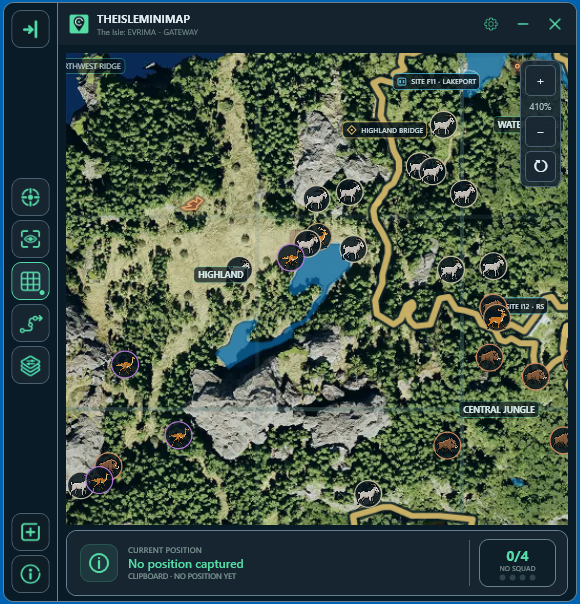
Use the mouse wheel or + and − buttons to zoom, hold the left mouse button to drag a zoomed-in map, and use the reset control to return to the full view. Follow Player can bring your marker back into view when a position update puts it outside the visible area. These controls change what you are looking at; they do not capture new coordinates.
Panning can move your marker off-screen without moving your dinosaur. Resetting the view can reveal it again without changing its coordinates. Check position freshness separately when you want to know where you are now.
Instructions checked against the current app on 8 November 2026. The cover is an AI-generated conceptual illustration, not the app interface or real Gateway geography. The images inside this guide are actual app screenshots.
The essential map controls
| What you want | What to use | What changes |
|---|---|---|
| Inspect a smaller area | Mouse wheel up over the map, or +. | The map view zooms in. |
| See more surroundings | Mouse wheel down, or −. | The view zooms out. |
| Look to another part of a zoomed map | Hold the left mouse button and drag. | The visible portion moves. |
| Recover the full overview | The reset symbol below the zoom controls. | Zoom returns to 100% and pan is reset. |
| Bring an updated off-screen marker into view | Enable Follow player when out of view. | The map can recenter when needed. |
The + and − buttons are in the map's top-right control strip, with the percentage between them and the reset symbol underneath. The percentage describes map zoom, not your chosen app window size.
Zoom around your cursor, or use the buttons
Place the cursor over the area you want to inspect before using the wheel. Wheel zoom is anchored around that point, which makes it easier to examine a nearby junction or bank without repeatedly searching for it. The + and − buttons instead zoom around the centre of the map view.
Start with enough context to recognise the destination, then zoom closer for the next decision. If the view becomes so tight that every small movement requires a correction, step back out. A useful view includes both the detail you need and enough surrounding terrain to understand it.
The current zoom range runs from 100% to 800%. At 100%, you are already at the full-map overview; repeatedly pressing − cannot make it smaller. For more screen space, adjust the app size instead. That is a separate setting covered in the overlay setup guide.
Pan to inspect a different area
At a closer zoom, hold the left mouse button on the map and drag. Release it when the area you want is visible. Panning is limited by the map edges, so a drag at the boundary may not move the image farther in that direction.
At 100%, there is no larger hidden section to drag into view. Zoom in first if you want to inspect and move around a smaller part of the island. Avoid confusing the map drag with dragging the app header, which moves the whole window.
Right-click is not the pan control. Depending on your access and enabled settings, it can be used for personal or shared pins. Use the left button for looking around so that inspecting an area does not become an unintended pin action.
Reset zoom and pan without resetting your trip
The map reset symbol returns the view to 100% and clears the pan offset. It does not replace your coordinates, clear saved pins or turn off your selected layers. It is a quick way to recover context after inspecting a distant part of Gateway.
Reset map view and Reset Trail are different actions. The first changes the view; the second clears recent movement history while keeping the current position. If you use Quick Access, choose the action name that matches your intention.
For example, after looking around North Lake while your marker is somewhere else, reset the view to see the island again, locate your marker and choose a new zoom. You have changed the view of your trip, not started a new trip or moved the marker to the lake.
Where to enable Follow Player
- Open Settings > Map Settings.
- Find Follow Player, below Movement Trail.
- Enable Follow player when out of view.
- Return to the map and use your normal position-update method while playing.
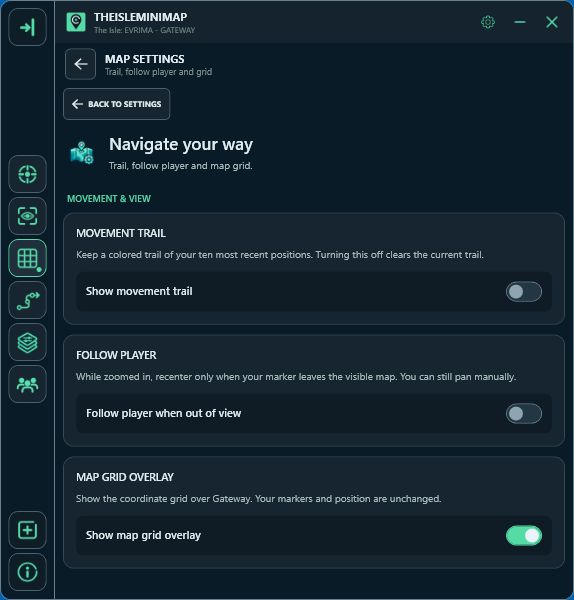
When zoomed in, a position update can move your marker beyond the visible area. With Follow Player enabled, the app adjusts the view to bring it back. It is not a permanent lock that holds the marker in the centre at every moment: manual panning stays available, and an already visible marker does not require recentering.
The app does not fight a drag while you are actively panning. Release the map when you finish inspecting it. When enabling Follow Player with a known position already outside the view, the app can also bring that position into view immediately.
Follow Player still needs position information. It cannot know that you kept walking while Asset Location was hidden and no new coordinates were copied. Set up your preferred method in Settings > Position Updates if that is the missing step.
A simple routine for a journey
- Begin wide. Identify your marker, destination and general direction.
- Inspect the next decision. Zoom around the place you need to examine and pan if necessary.
- Check the ground. Compare the map reference with the game before committing to a turn or crossing.
- Update as you travel. Provide fresh coordinates using your chosen reading or clipboard method.
- Recover context when needed. Reset the view, then choose a useful closer zoom again.
A movement trail can add a short reminder of recent captures, but it does not replace this view control. Its lines connect supplied positions rather than calculating a walking route. The movement trail guide explains the history separately.
When the map does not behave as expected
- Dragging does nothing: check whether the map is at 100%, or already against an edge.
- The app ignores mouse input while gaming: check its click-through and interaction settings; activate the app when you want to use its controls.
- Your marker disappeared: reset the view before assuming a position-reading fault.
- The marker is visible but stale: zoom and Follow Player do not supply coordinates. Check Position Updates and the latest capture information.
- You expected the marker to stay centred continuously: Follow Player only recentres when needed to restore visibility.
The tutorial covers initial setup, while the Quick Access guide helps place frequently used view actions in the sidebar. Keep those shortcuts focused on what you use while playing.