
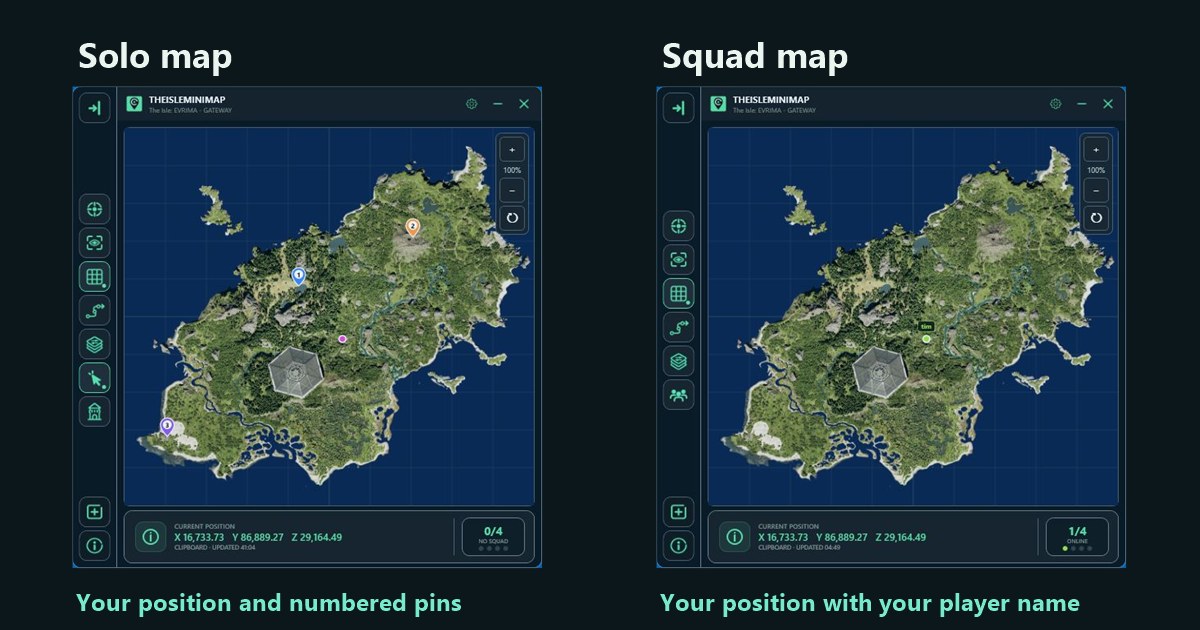
A player marker answers where someone was at the latest position update. A pin marks a place a player chose. On Gateway that distinction is useful whenever you park a reference for later or use a friend’s marker to find the right approach to a meetup.
Read the marker legend
| You see | It represents | What changes it |
|---|---|---|
| Your colored dot | Your latest accepted Asset Location reading. | A new position from your game. |
| A squad member’s colored dot | The latest position a member shared with the private squad. Look for their name when shown. | A fresh position shared by that member’s app. |
| A numbered pin | One of up to three personal places saved in Solo mode. | You place it or remove it. |
| The shared red pin | One destination the private squad is using. | A squad member places or removes it. |
Your position follows fresh coordinates
Look for your dot, then compare it with Current Position along the bottom of the app. That readout shows when you last supplied a position. If you walk away after closing the Asset Location panel, the dot can stay where the last reading put it. Open the panel again and use your chosen reading method when you need a fresh location.
A green, pink or blue dot can still be your own marker. Use your selected color and the location you just updated for context. The minimap controls guide explains how to bring it back into view if you zoomed or panned away from it.
A friend’s dot depends on their update
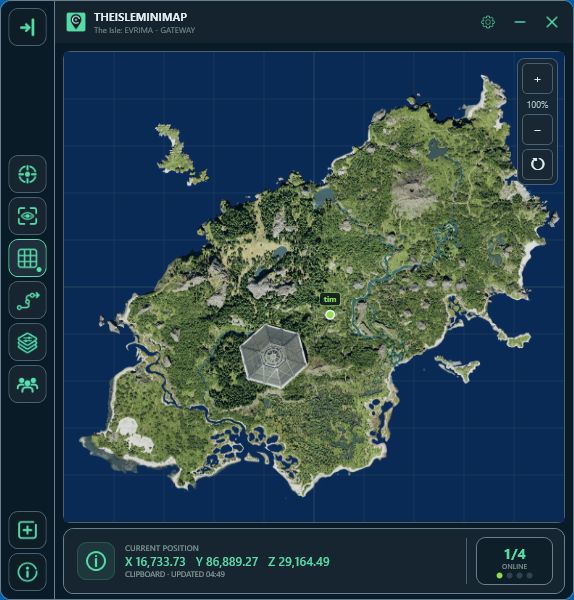
If you both told each other you were heading to the same spot, compare the dots after you both refresh. Your friend’s marker moves when their app shares a fresh position, so them reading Asset Location matters as much as you doing it on your side. An old position can eventually disappear. If a friend’s marker stays missing after they update, see the squad troubleshooting guide.
A numbered pin saves a place for you
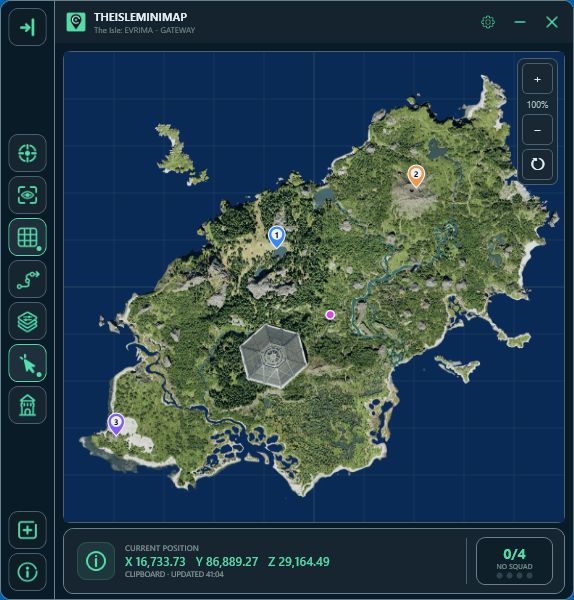
Use one pin for a spot you want to revisit, such as a turn that brings you back to familiar terrain. The other slots can mark places you’re comparing or a useful stopping point. Removing a pin leaves your position in place. Read the Solo pins guide for the placement and color options.
A shared pin shows where the group plans to go
If your squad is meeting at a bridge, the red destination pin can mark a waiting spot beside it. The dots may be scattered along different approaches while the pin stays at that spot. When plans change, remove the previous pin and put the new one at the place you just agreed on. There is one shared destination at a time.
The private squad map guide explains how sharing works and who can see the position updates and destination.
Put the markers together at a meetup
Suppose you ask your friend to meet near South Plains Bridge. The shared pin marks the waiting point, while your dot and your friend’s dot tell each of you where the other last shared a position. If a dot sits on the far side of the bridge, ask for a fresh reading before changing the meetup. When you are exploring alone later, you can save the bank you liked as a personal pin for another visit.